Introduction
Getting locked out of an iPhone can be frustrating, especially when important photos, contacts, or documents are stored on the device. A forgotten passcode, a Face ID issue, or purchasing a second-hand locked iPhone can leave users searching for a solution. Fortunately, there are several reliable ways to regain access.
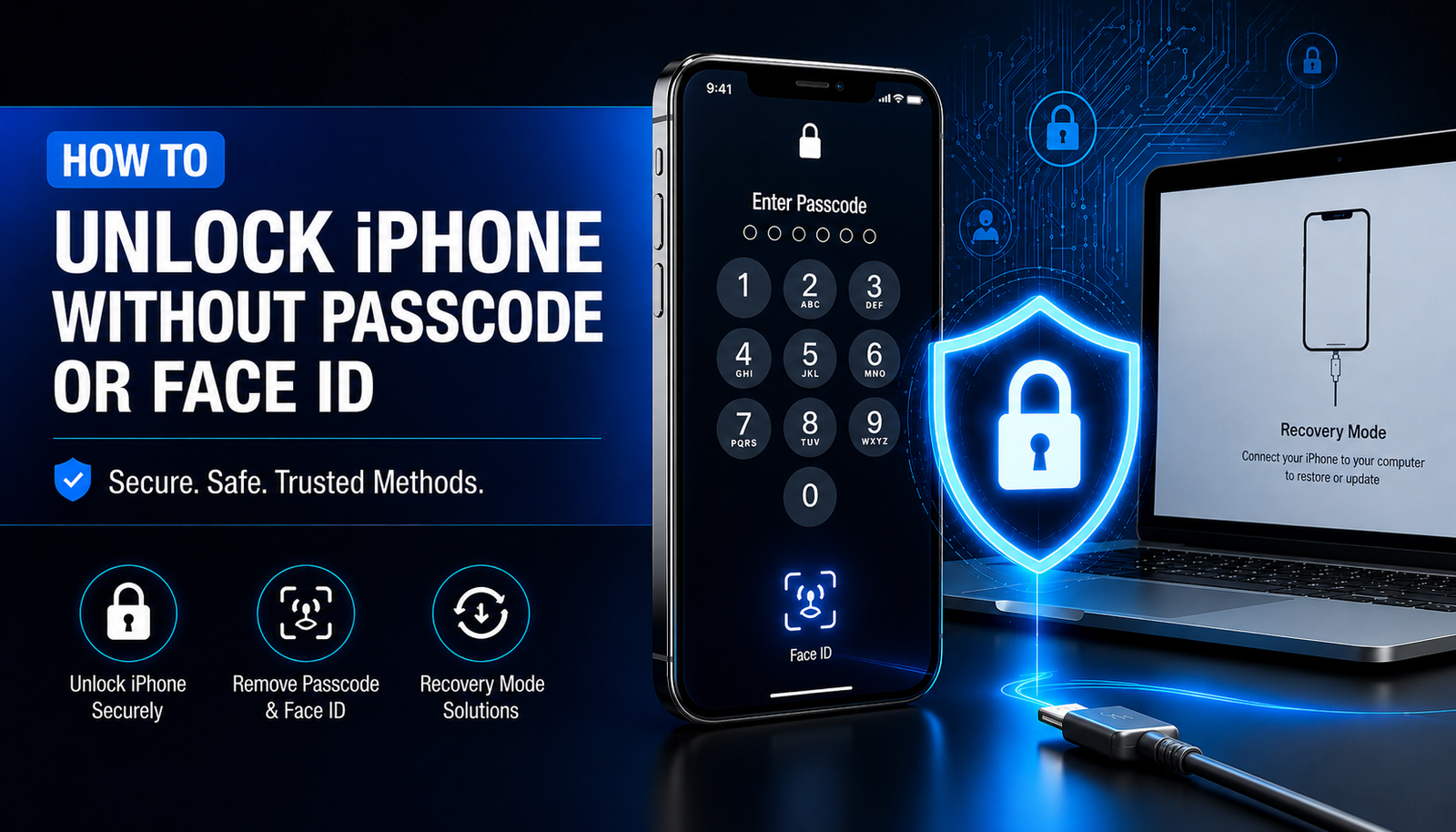
This guide explains how to unlock iPhone without passcode or Face ID using safe and trusted methods. It compares the available options, explains when each method should be used, and highlights important precautions to help protect personal data whenever possible.
Why an iPhone Gets Locked
Apple designs the iPhone with advanced security features to protect personal information. When the wrong passcode is entered several times, the device becomes disabled. If Face ID stops recognizing the user’s face or the passcode is forgotten, access is no longer possible until the phone is unlocked.
Common reasons include:
- Forgotten passcode
- Face ID not working properly
- Multiple incorrect passcode attempts
- Purchasing a second-hand locked iPhone
- Software errors after an iOS update
Understanding the reason behind the lock helps determine the safest unlocking method.
Can an iPhone Be Unlocked Without a Passcode or Face ID?
Yes, it is possible in many situations. However, the available method depends on whether the owner remembers their Apple ID credentials, has access to a computer, or previously enabled services like Find My iPhone.
Some methods erase the device before restoring access, while others may preserve data if proper backups exist. Choosing the correct approach is important to avoid unnecessary data loss.
Method 1: Use Apple Devices App or Finder
One of the safest methods is using Finder on macOS or Apple Devices (or iTunes on older Windows computers).
Steps
- Connect the iPhone to a computer.
- Put the iPhone into Recovery Mode.
- Open Finder or Apple Devices.
- Select the connected device.
- Choose Restore iPhone.
- Wait for the software to reinstall iOS.
- Set up the iPhone again.
This method removes the forgotten passcode but also erases all data that is not backed up.
Best For
- Forgotten passcode
- Disabled iPhone
- Face ID issues
Method 2: Unlock Using iCloud and Find My
If Find My was enabled before the device became locked, the owner can erase the phone remotely.
Steps
- Sign in to iCloud using the linked Apple ID.
- Open Find My.
- Select the locked iPhone.
- Choose Erase iPhone.
- Complete the setup process after the erase finishes.
This method requires internet access and the correct Apple ID credentials.
Method 3: Recovery Mode
Recovery Mode is Apple’s official solution for inaccessible devices.
When to Use It
- Forgotten passcode
- Disabled screen
- Face ID failure
- Device won’t boot correctly
Recovery Mode reinstalls iOS and removes the screen lock.
Method 4: Use Apple Support
If the owner cannot access the Apple ID or experiences Activation Lock problems, contacting Apple Support is often the safest option.
Apple may request:
- Proof of purchase
- Device serial number
- Apple ID verification
If ownership is confirmed, support representatives can guide users through the next steps.
What Is Activation Lock?
Activation Lock is a security feature connected to Find My iPhone.
Even after an iPhone is erased, Activation Lock prevents unauthorized users from activating the device without the original Apple ID and password.
This feature greatly reduces theft but also means second-hand buyers should always verify that Activation Lock has been removed before purchasing an iPhone.
Will Unlocking Delete Data?
In most cases, yes.
Apple prioritizes security over convenience. Removing the passcode usually requires erasing the device.
Data can be restored if the owner previously created a backup using:
- iCloud Backup
- Finder
- Apple Devices
- iTunes
Without a backup, recovering deleted information is generally not possible.
Tips to Avoid Getting Locked Out Again
Users can reduce future problems by following a few simple habits.
- Enable Face ID correctly.
- Use a memorable passcode.
- Keep the Apple ID password secure.
- Turn on Find My iPhone.
- Back up data regularly.
- Update iOS whenever new security updates become available.
These practices make recovery much easier if access is lost again.
Common Mistakes to Avoid
Many websites promote tools that claim to unlock iPhones without data loss or Apple verification. Users should be cautious because some of these tools are unreliable or unsafe.
Avoid:
- Unknown unlocking software
- Websites requesting Apple ID passwords
- Fake Activation Lock removal services
- Unverified downloads
Using official Apple methods is always the safest approach.
Frequently Asked Questions
Can an iPhone be unlocked without losing data?
Usually not. Most official methods erase the device first. Data can only be restored from an existing backup.
Can Face ID be bypassed?
No. Face ID is designed as a secure authentication system and cannot legally be bypassed. Users must use Apple’s official recovery methods if Face ID is unavailable.
Can Apple unlock a locked iPhone?
Apple cannot remove a forgotten passcode without erasing the device. However, Apple Support can assist with account recovery and Activation Lock verification if proof of ownership is available.
Is Recovery Mode safe?
Yes. Recovery Mode is an official Apple feature and is one of the safest ways to restore access to an iPhone.
Final Thoughts
Learning how to unlock iPhone without passcode or Face ID can help users regain access when they are locked out of their devices. The best method depends on whether the user has access to their Apple ID, backups, and a computer. Official solutions such as Finder, Apple Devices, Recovery Mode, and Find My offer secure ways to restore access while protecting the device from unauthorized use. To avoid future lockouts, users should regularly back up their data, keep their Apple ID information updated, and enable Apple’s built-in security features.